
How to Add Your New Google Workspace Email to Microsoft Outlook (Without Breaking Your Old Inbox)
Switching your business to a new domain name is an exciting milestone. It makes your brand look sharp, professional, and cohesive. However, the actual transition—especially moving your team over to a new Google Workspace email address—can feel a bit daunting if you aren’t a tech expert.
At Applified Marketing Group, we set up these custom email systems for businesses all the time. One of the most common questions we get is: "How do I start using my new email in Microsoft Outlook without losing access to my old email inbox?"
The good news is that modern versions of Microsoft Outlook make this incredibly simple. You don’t need to download messy plugins, run complicated software installations, or switch between different computer profiles. You can view both your old email and your new email side-by-side in the exact same window.
Here is our definitive, step-by-step guide to getting your new Google Workspace email up and running smoothly in Outlook.
Step 1: Activate Your New Email Online First
Before you try to connect anything to your desktop Outlook program, you must log into your account online to activate it and create your permanent password.
Open your internet browser (like Google Chrome, Microsoft Edge, or Safari) and go to gmail.com.
Click Sign In in the top right corner.
Type in your new business email address (e.g., yourname@yourcompany.com) and click Next.
Type in the Temporary Password provided by your administrator and click Next.
The screen will prompt you to create a new, secure, permanent password. Make sure to write this down in a safe place!
Once your browser loads your brand-new, empty inbox, your account is officially active. You can safely close your browser window.
Step 2: Add the New Account to Outlook
Now, we will add this new email address to your existing Outlook program. This will place your new inbox right alongside your old one.
Open the Outlook program on your computer.
In the very top-left corner of the screen, click on File.
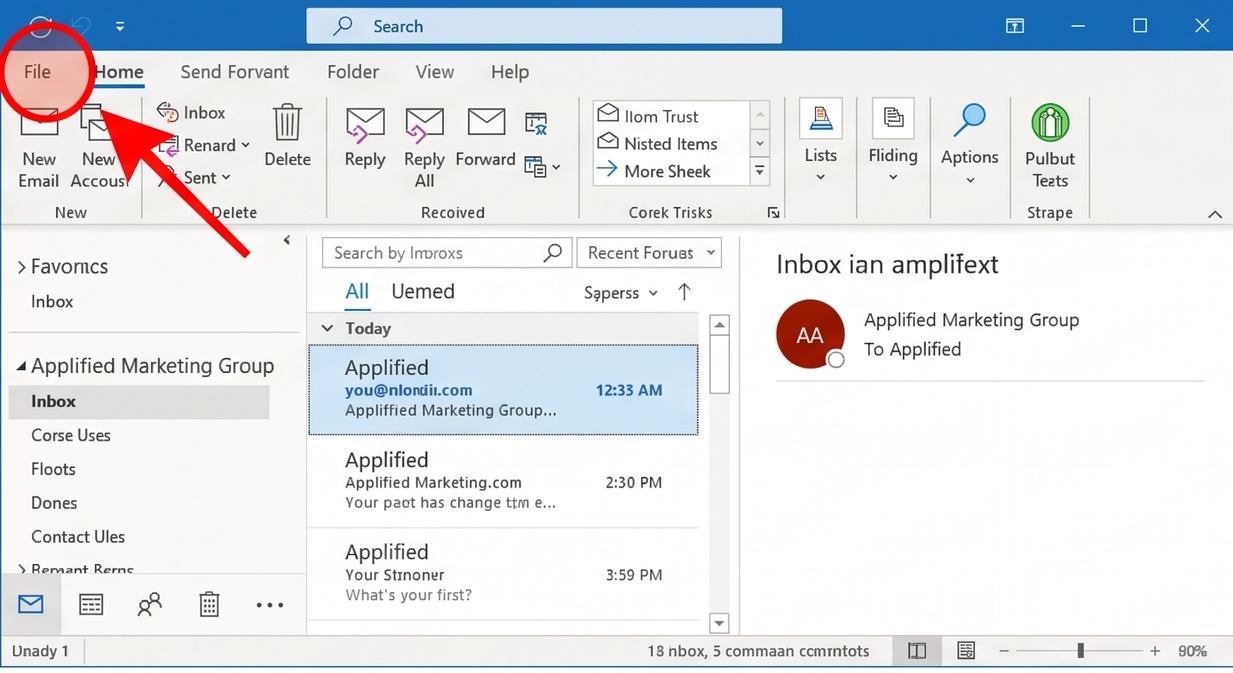
Screenshot of Outlook with a red arrow pointing to the "File" tab in the top-left corner
Click the large button that says + Add Account.
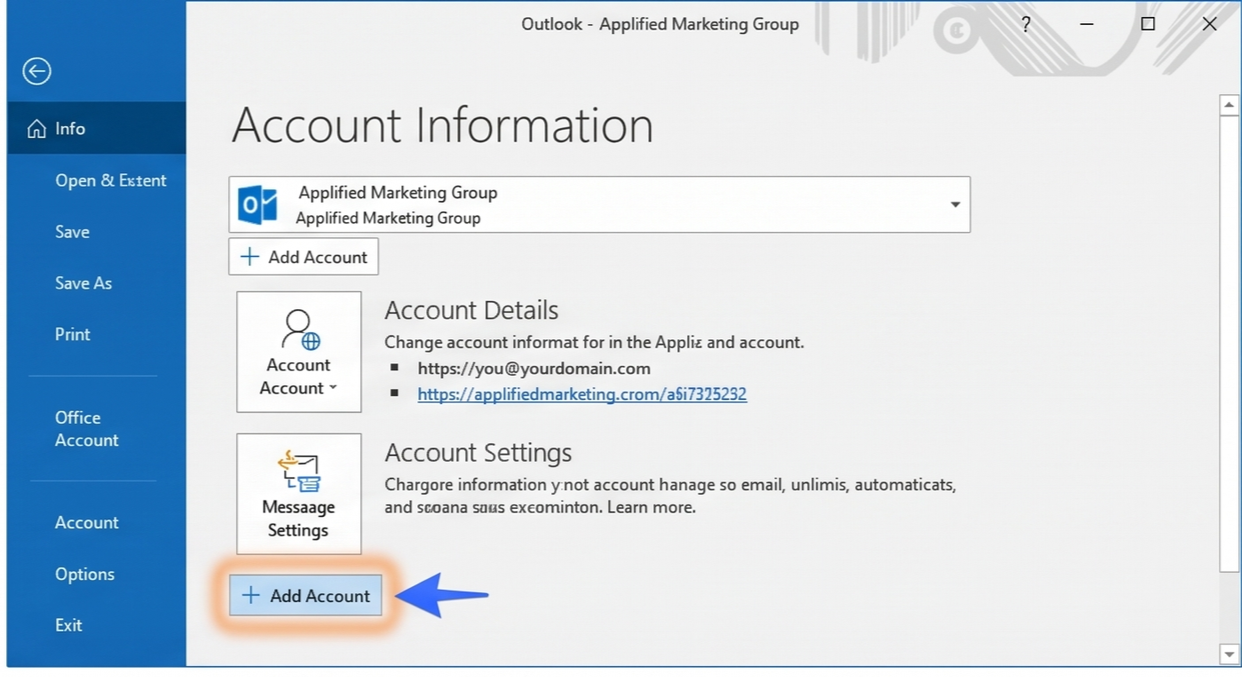
Screenshot of the Outlook Account Information screen, highlighting the "+ Add Account" button
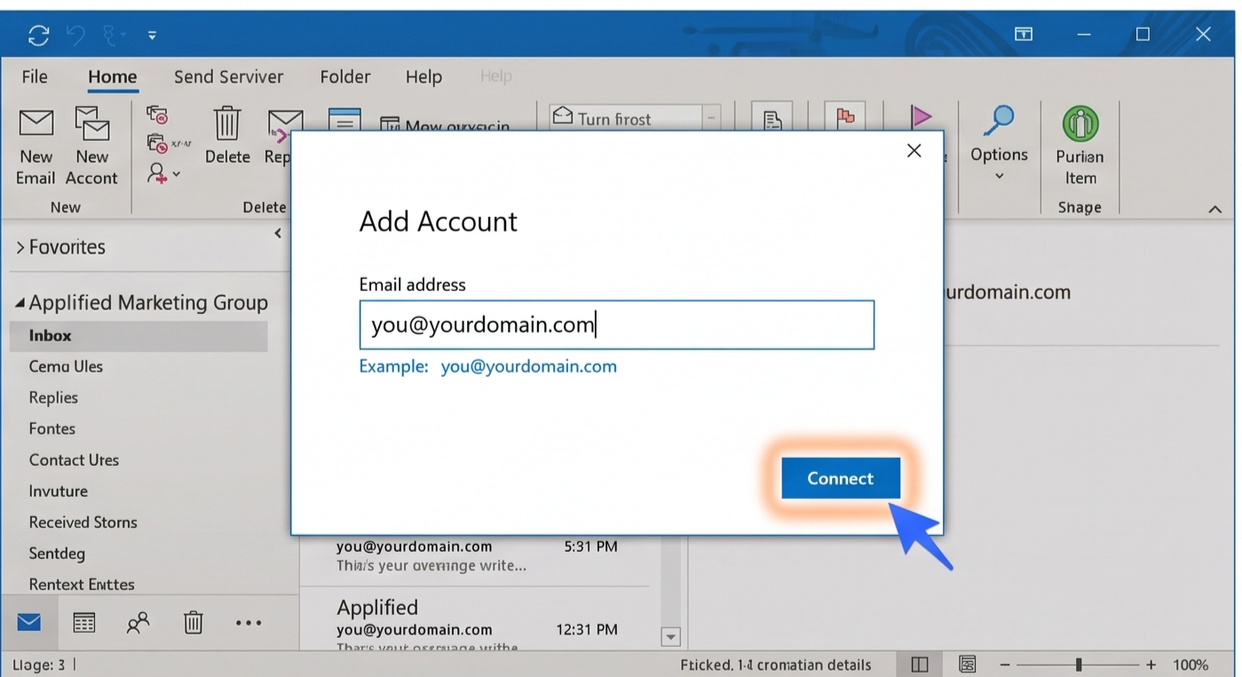
A box will pop up asking for your email. Type in your New Business Email Address and click Connect.
Because Google Workspace is highly secure, a Google login window will automatically pop up right inside Outlook. Type in your email address again and click Next.
Enter the New Password you created during Step 1 and click Sign in.
Google will ask you to grant permission for Microsoft Outlook to access your emails. Click the blue Allow button.
Outlook will display a message saying "Account successfully added." Click Done.
Screenshot of the final success screen in Outlook showing the account has been added
Look at the left-hand sidebar of your Outlook screen. You will now see your old email folders and a brand-new section dedicated entirely to your new business email address. You can click between the two inboxes seamlessly.
Step 3: Turn On Your Existing Email Signature
Your current email signature is still saved on your computer, but Outlook doesn’t automatically know you want to use it for your new email address. Let's fix that so you don't have to recreate it from scratch.
Click the New Email button in Outlook (as if you were writing a blank message).
On the top toolbar, click the Signature button (it looks like a pen writing on a piece of paper) and select Signatures... from the dropdown menu.
A settings box will appear. Look to the top right corner under the section labeled "Choose default signature".
Change the E-mail account dropdown to your new email address.
Right below that, click the dropdown menus for both New messages and Replies/forwards and select your existing signature's name.
Click OK at the bottom to save your changes.
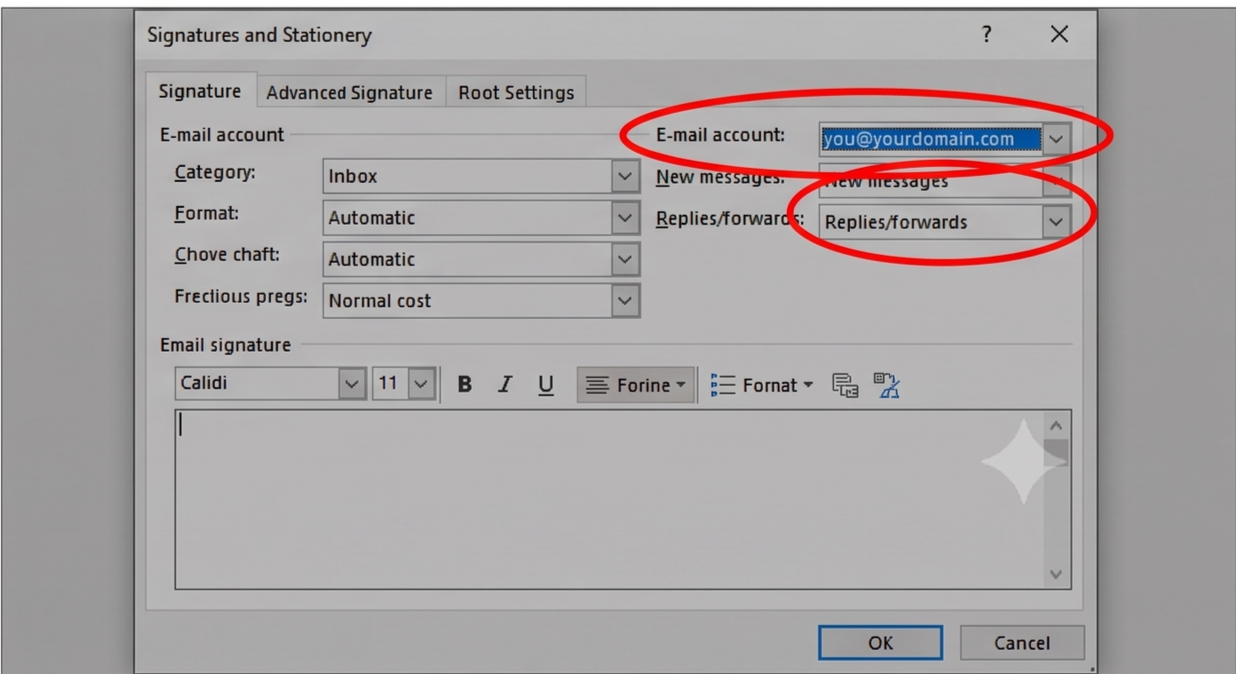
Screenshot of the Outlook Signatures setting window, with circles around the "E-mail account" dropdown and the "New messages" dropdown
Now, whenever you compose a new email or reply to a client from your new domain, your signature will automatically be attached!
Need Extra Help?
If your business is looking to upgrade its digital presence, launch a new website, or seamlessly transition your team's workplace technology, Applified Marketing Group is here to handle the heavy lifting. Reach out to us today to see how we can streamline your business operations!